Everything Crisply does
First run teaches you the two buttons and gets out of the way. This is the rest of it.
The two buttons
Crisp it
For a prompt you are about to send.
Press ⌃⌥C in whatever field you are typing in. Crisply reads that one field, works out what the model would otherwise have to guess at, and asks you two or three questions about it.
Answer the ones that matter and skip the rest. A skipped question stays unstated: it never invents an answer for you. What lands back in your field is one prompt, ready to send.
The two buttons
Polish
For everything else you write.
Press ⌃⌥P instead. Grammar, spelling, punctuation, and the sentences that got away from you. It asks nothing and it answers nothing: your email stays your email, minus the three typos.
It reads the tone set on your profile, so the same paragraph comes out differently in Slack than in a document, in the way you asked for once.
The two buttons
Not right yet? Crisp again
The second pass is not a fresh start.
Press Crisp it on a rewrite and it narrows from what you already told it rather than beginning again. It will not ask you anything you have already answered.
That is why the third attempt lands closer than the second instead of sideways from it.
Making it yours
Profiles
So it stops asking you the same things about yourself.
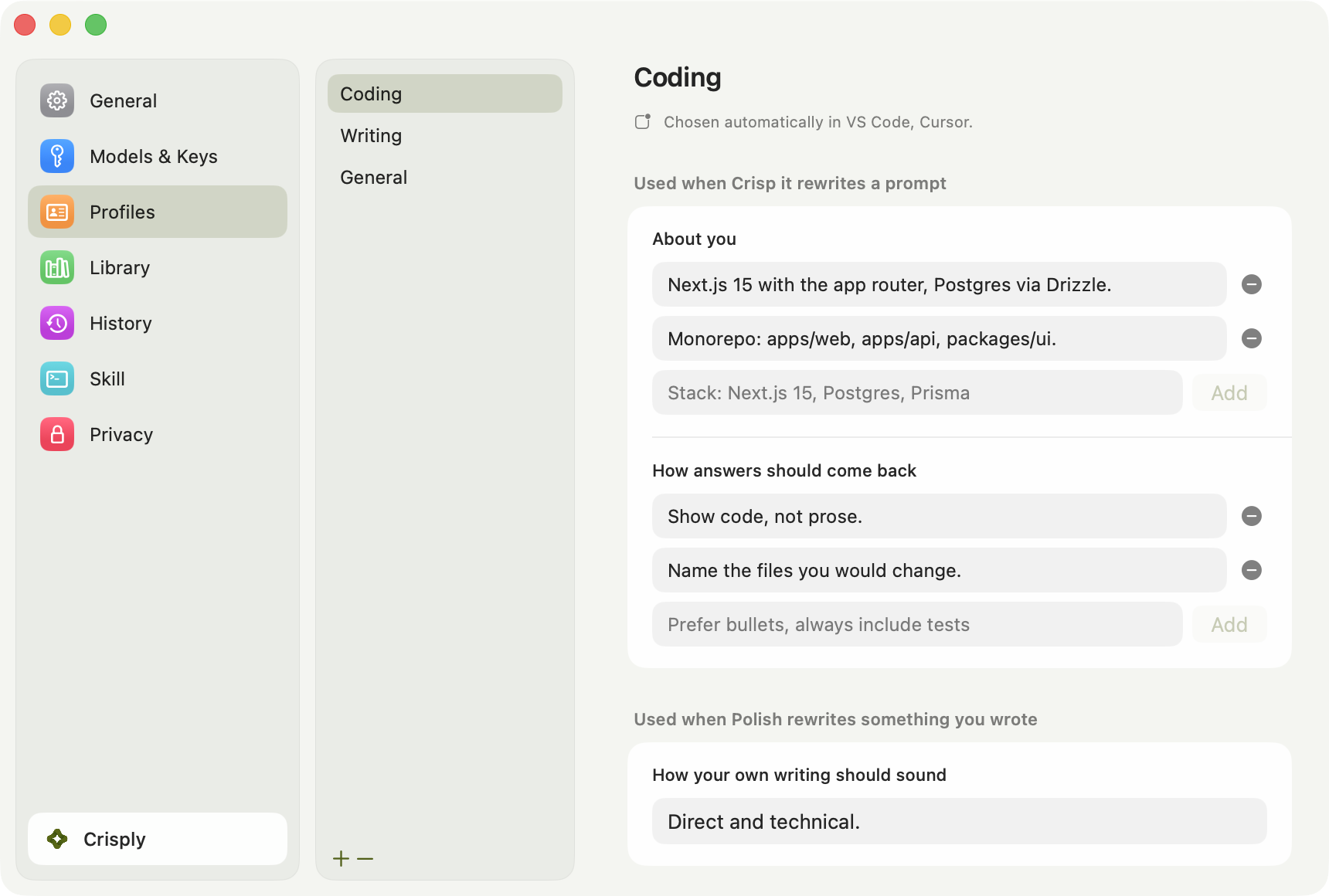
A profile holds what is always true about your work: that you are on Next.js and Postgres, that you want code rather than prose, that answers should name the files they would change. Every rewrite carries it, so you stop typing your own context at the top of every prompt.
Crisply picks one for you from the app you are in. Cursor and VS Code get your coding profile, Mail and Slack get your writing one, and anything else falls to General. Pin one from the menu bar and it wins everywhere until you unpin it.
Tone and directions are Polish only. Standing context and output preferences reach both buttons.
Making it yours
Prompt library
Write it well once.
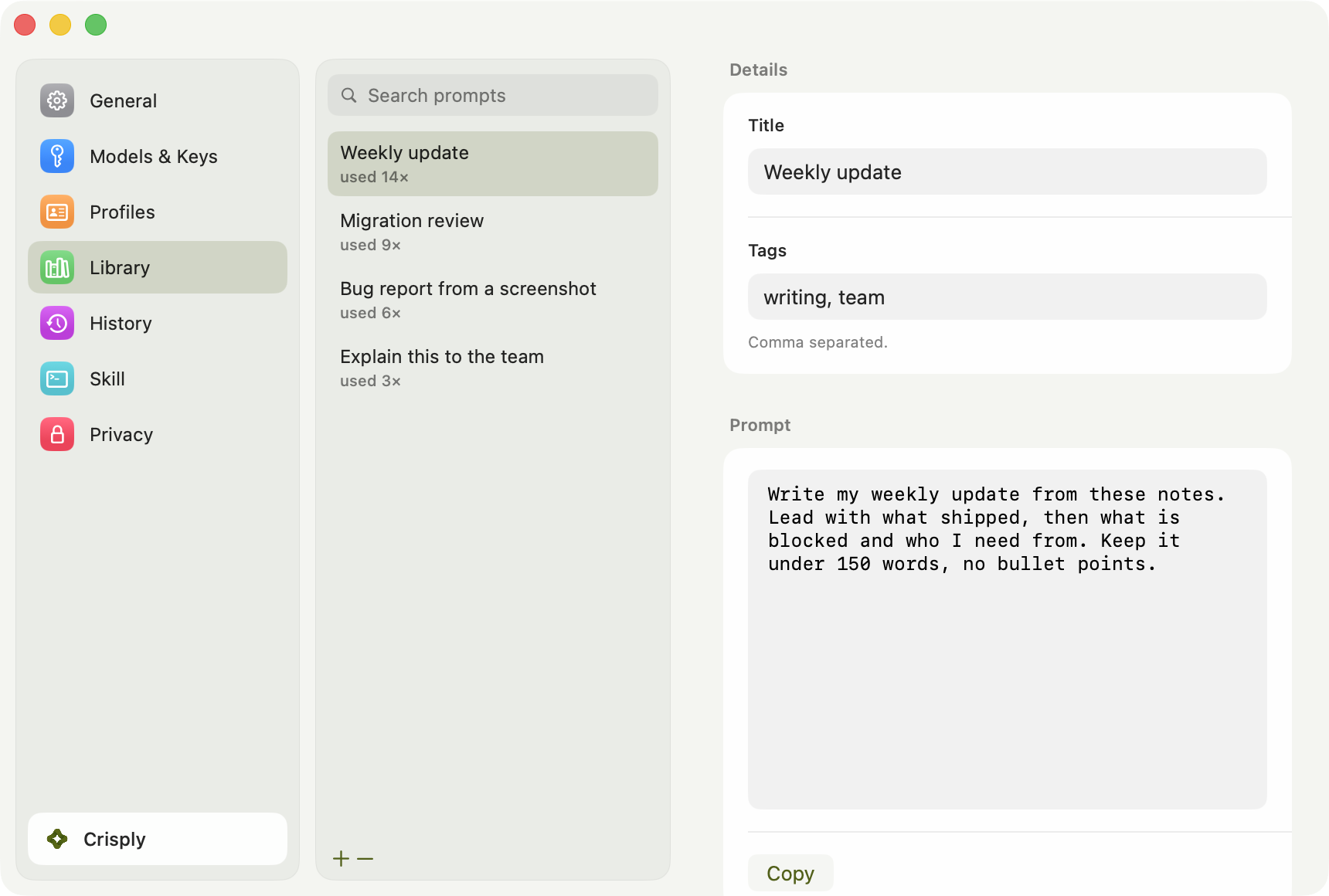
Save the prompts you keep retyping, give them tags, and drop one straight into the field you are working in from the bar or the menu bar. It counts which ones you actually reach for, so the good ones rise to the top.
Anything in your history can be saved into the library in one click, which is usually how a prompt gets there: you write a good one by accident and keep it.
Making it yours
History
What you sent, and where it went.
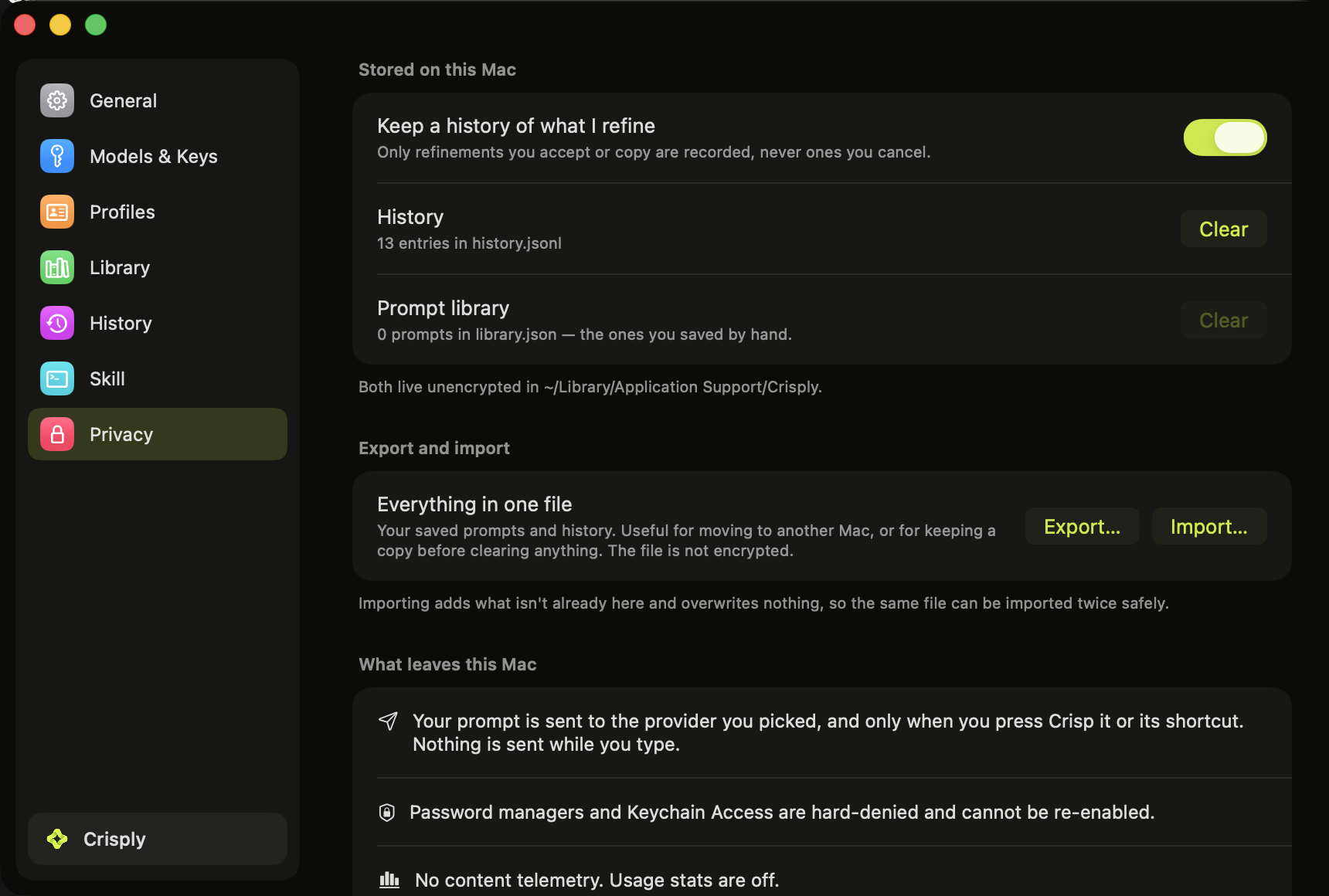
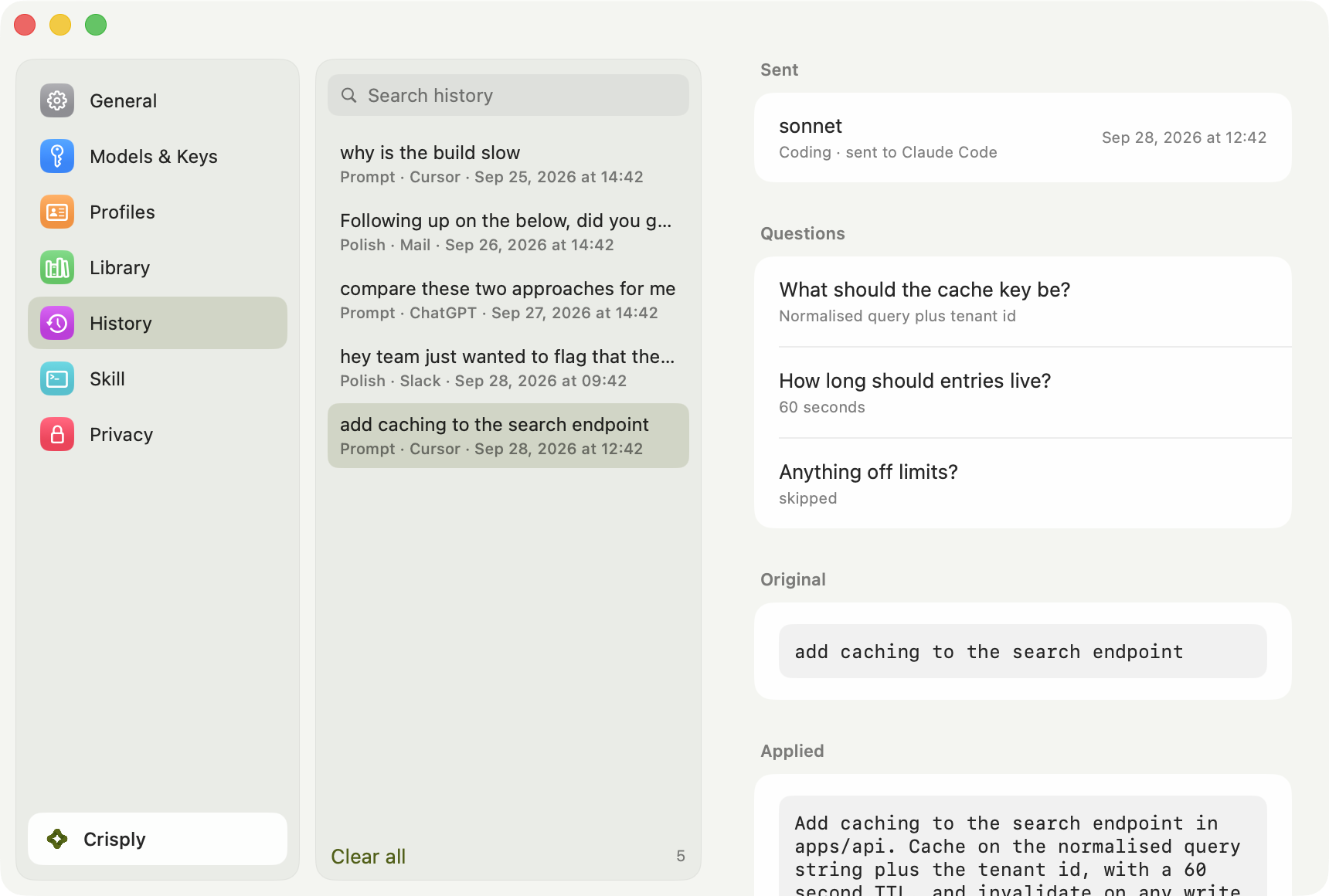
Every refinement you accepted or copied, with the questions it asked, the profile that shaped it, the model that answered and the address it was sent to. Searchable, and reusable: open one and put it back in a field.
Only what you accepted. A refinement you cancelled is never recorded. Switch recording off entirely in Settings → Privacy, and clear what is there with one button.
Where it lives
The bar
A small bar over whatever you are doing.
Its buttons act on the field you are typing in, not on the bar. Grab the grip and drag it to any edge of any screen: targets appear as you drag and it snaps to the one you drop on. Left and right turn it vertical. Double-click the grip to put it back.
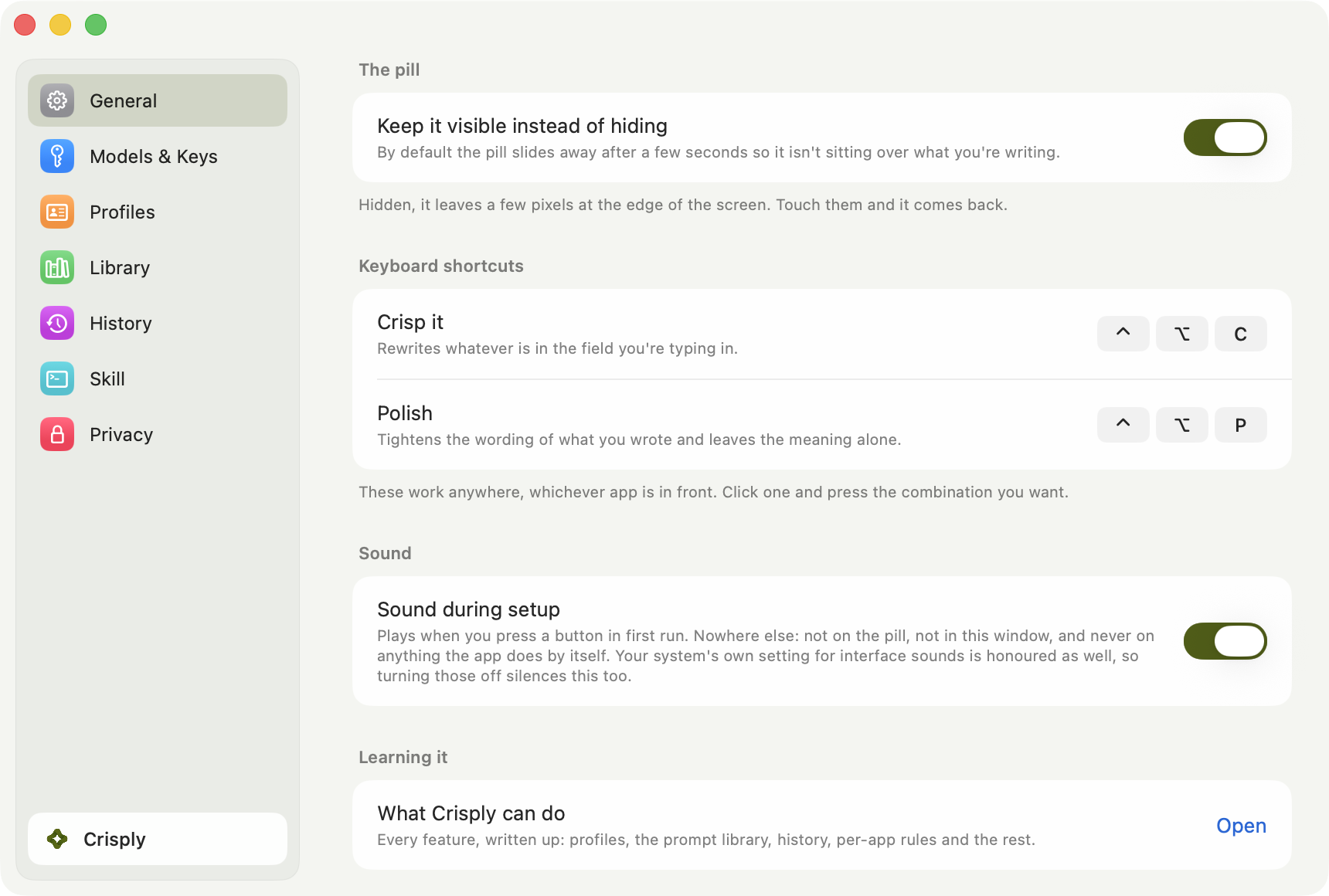
It can slide off after a few seconds, leaving a sliver at the edge that brings it back when you touch it. That is off by default, because something that disappears reads as something that broke. Turn it on in Settings → General.
 Crisp itPolishCoding
Where it lives
Shortcuts
⌃⌥C and ⌃⌥P, and they are yours.
Both work whichever app is in front. Change either in Settings → General: click it and press the combination you want. Escape cancels, Delete puts the original back.
It refuses a combination with no ⌘, ⌥ or ⌃, because that would swallow the key in every app you type in, including the box you would use to change it back. If another app already owns your combination, the row says so rather than failing quietly.
Rules
Per-app rules
Crisply works everywhere by default. These are the exceptions.
An app can be marked as an AI app, which makes Crisply lead with Crisp it rather than Polish. Terminals are off until you allow them, because most terminal typing is shell rather than prompts. And any app can be denied outright, after which Crisply never reads it.
Password managers are denied permanently and cannot be switched back on.
Rules
Coding agents
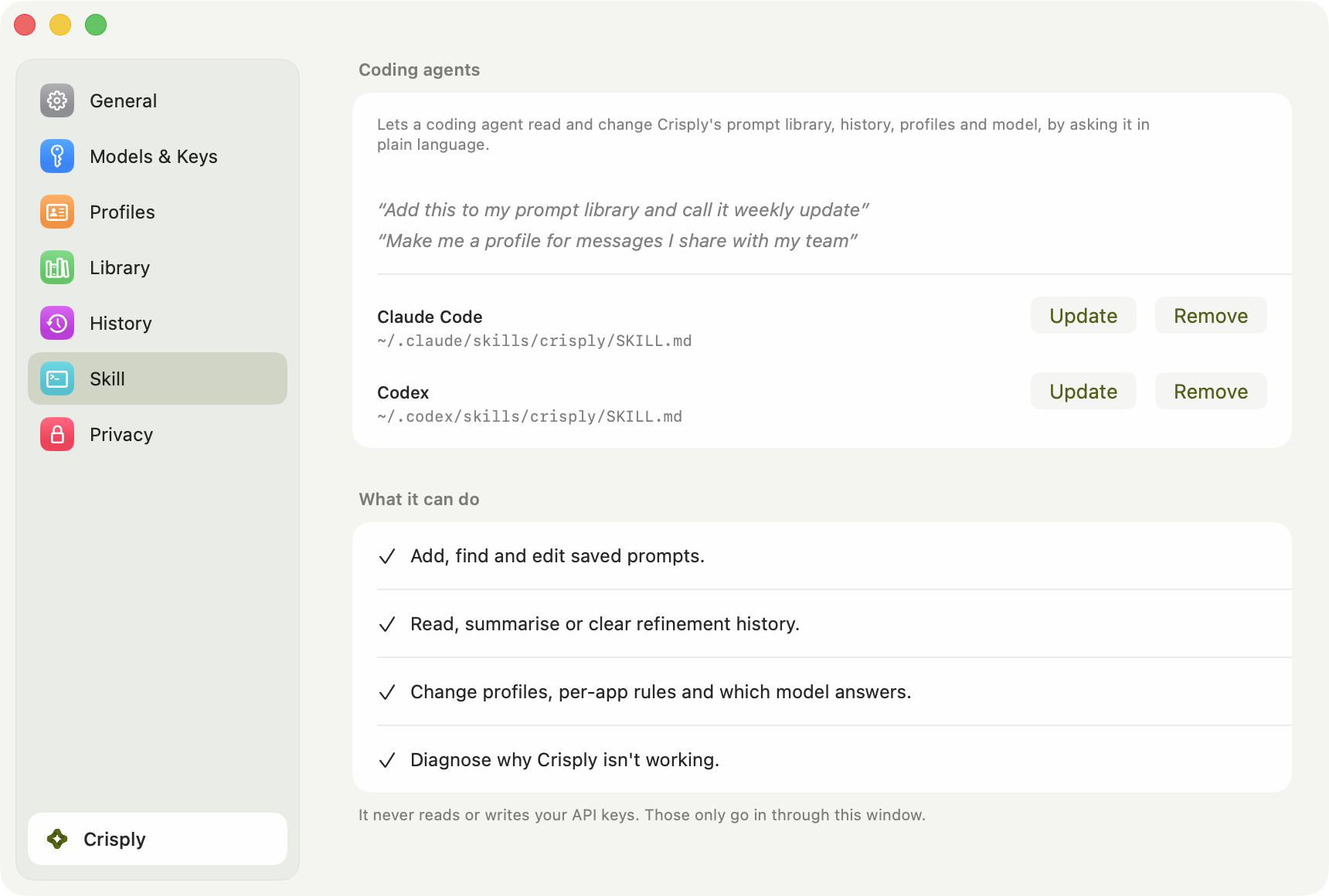
Manage Crisply by asking Claude Code, Codex or Cursor.
One button installs a skill into whichever of them is on your Mac. After that you can say “add this to my prompt library and call it weekly update” or “make me a profile for messages I share with my team” and it happens, while Crisply is running.
It can read and change your prompts, history, profiles and model. It never sees your API keys: those are in the Keychain and only go in through the settings window.
Rules
Your model
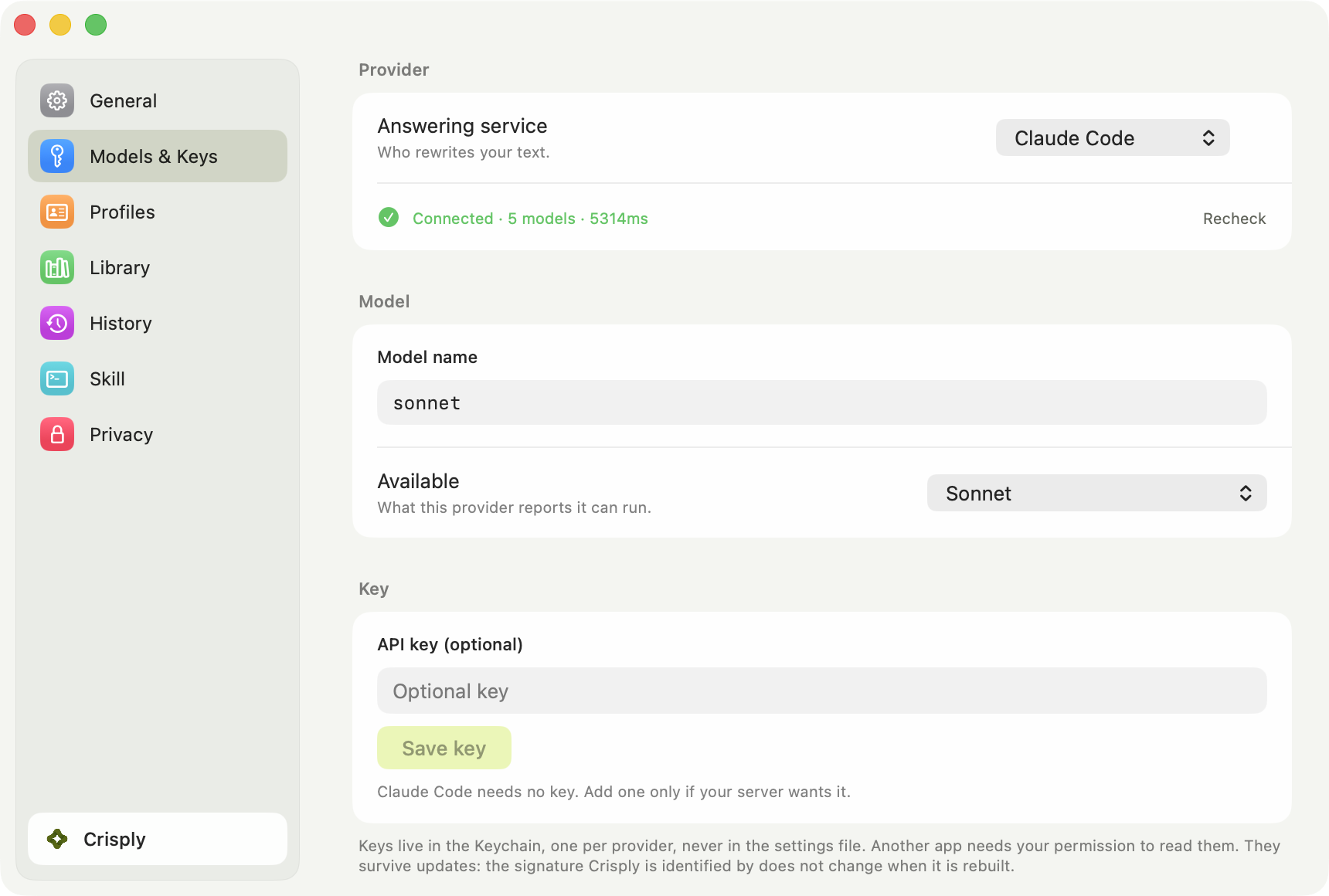
Your text goes to the model you choose, and only there.
Run it against a model on your own Mac and your text never leaves the machine. Or use a Claude Code or Codex subscription you already pay for, driven the way you drive it in a terminal, with no second bill. Or an API key, which stays in the Keychain.
Anything speaking the OpenAI chat format works: a local server, a company proxy, a gateway. Type the address and the model name. Crisply checks the endpoint as you type it and says in words what happened.
Rules
What it never does
It reads one field, on the keypress, and nothing else.
There is no background watching. Crisply reads the focused field at the moment you press a button and at no other time.
No analytics and no usage stats. You do sign in, with Google, so a trial and a purchase belong to you rather than to one Mac. The app asks our server what your account can use when you sign in, after you buy, and otherwise about once a day. Those requests carry your account and a one-way hash of this Mac’s id, never your text or your keys. It also checks this site once a day for a new version, and that check sends no id at all.
Your library and history are plain files in your own Library folder, and Settings → Privacy exports them to one file you can carry to another Mac.